


































Why Do Google Analytics and Search Console Show Different Numbers? Here’s How to Check

Learn why Google Analytics and Search Console report different numbers, what each tool measures, and how to check your setup for tracking discrepancies.
Have you ever opened Google Analytics, looked at your website traffic and felt happy with what you were seeing, only to open Google Search Console a few minutes later and find completely different numbers?
You start wondering what is happening.
Is Google Analytics counting visitors incorrectly? Is Search Console missing some of your traffic? Did something go wrong with your website?
If you’ve ever experienced this, I want you to know something: you’re probably not doing anything wrong.
This is actually one of the most common things that confuses website owners, especially people who are still learning how to manage their websites and understand SEO.
And honestly, it can be frustrating.
You spend time writing articles, improving your website, sharing your content and trying to attract visitors. Naturally, you want to know whether your efforts are working.
But when two Google tools show different numbers, it’s difficult to know which one to trust.
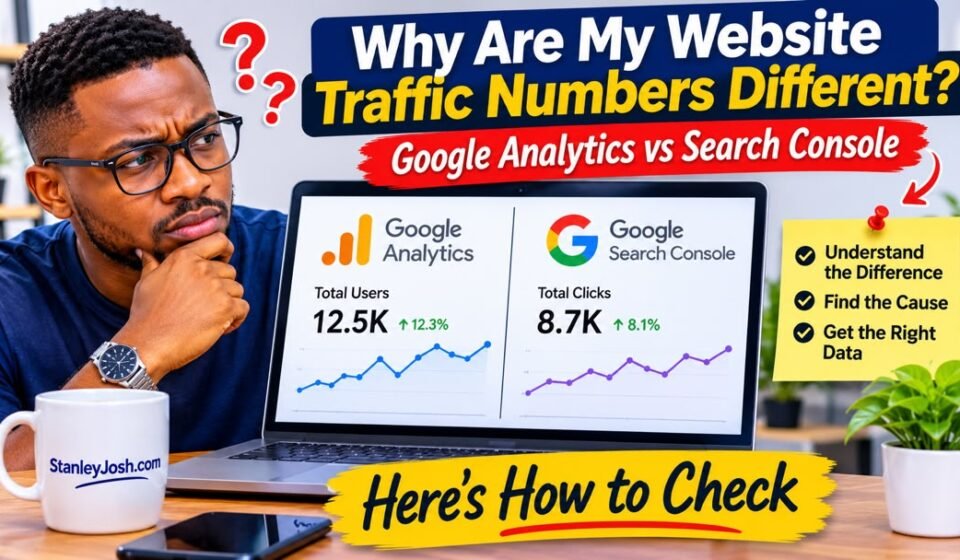
Here’s something that might surprise you: Google Analytics and Google Search Console are not designed to measure exactly the same things.
Once you understand the difference, those numbers will start making a lot more sense.
Let’s break it down.
First, Understand What These Two Tools Actually Do
Before we start looking for problems, let’s understand what each tool is telling us.
What Is Google Analytics?
Google Analytics 4 (GA4) helps you understand what happens after someone visits your website.
Think of it as a tool that lets you observe how people interact with your content.
For example, it can help you understand:
- How many people visit your website.
- Which pages they spend time reading.
- How visitors arrive at your website.
- How long people engage with your content.
- Whether visitors return to your website.
- Whether people complete important actions, such as signing up for your newsletter.
Imagine someone discovers your blog through Google, clicks on an article and starts reading.
Google Analytics helps you understand what happens during that visit, provided your tracking is properly configured and the visitor’s activity can be measured.
It’s particularly useful when you want to understand whether people are actually engaging with your website.
What Is Google Search Console?
Google Search Console does something different.
Instead of focusing on what visitors do after reaching your website, it helps you understand how your website performs in Google Search.
For example, you can use it to discover:
- How often your website appears in Google search results.
- How many clicks your pages receive from Google.
- Which search queries bring people to your website.
- Which pages are performing well in search.
- Your website’s average search position.
- Whether Google is experiencing indexing problems with your pages.
Let’s say someone searches for “best AI marketing tools for small businesses.”
Google displays your article in the search results, and that person clicks on it.
Search Console records that search activity.
In simple terms:
Google Search Console tells you how people discover your website through Google Search, while Google Analytics helps you understand what happens after they arrive.
Both are important, but they answer different questions.
Why Are the Numbers Different?
Now we get to the part that probably brought you here.
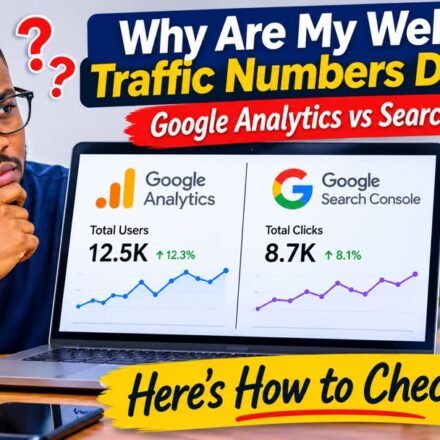
Why would Google Search Console report 100 clicks while Google Analytics shows only 75 organic search sessions?
Shouldn’t those numbers be the same?
Not necessarily.
There are several reasons why they can be different.
Let’s look at the most important ones.
- Clicks and Sessions Are Not the Same Thing:
This is probably the biggest reason.
- Google Search Console measures clicks.
- Google Analytics measures sessions.
- A click happens when someone clicks a link to your website from Google Search.
- A session is a period of activity when someone interacts with your website.
Here’s an example.
Imagine someone searches Google, finds your article and clicks on it.
Search Console records a click.
Google Analytics may record a session when its tracking system successfully measures the visit.
Now imagine that the same person clicks your website twice during a short period.
Search Console may record two clicks, while Google Analytics may count the activity as one session.
That’s because multiple clicks don’t automatically mean multiple sessions.
This is why comparing clicks and sessions as though they’re identical can lead to confusion.
- Your Google Analytics Tracking Might Not Be Working Properly:
Here’s another possibility worth checking.
Your website might be receiving visitors, but Google Analytics isn’t recording all their activity.
This can happen when:
- The Google Analytics tracking code is missing from some pages.
- Your Google tag hasn’t been installed correctly.
- Your website’s tracking configuration is incorrect.
- A recent website update has affected your tracking setup.
- A page loads without successfully activating the tracking code.
For example, imagine you recently changed your WordPress theme.
Everything looks fine when you visit your website, but the Google Analytics tracking code is no longer working correctly on some pages.
Search Console can continue recording Google Search clicks because it collects its search performance data separately.
However, Analytics may miss some visits.
This is why checking your tracking installation is important.
Don’t assume your website has a traffic problem before confirming that your measurement tools are working correctly.
- Some Visitors Don’t Allow Tracking:
Privacy is another reason your numbers might not match.
Some visitors use browser settings, privacy extensions or consent preferences that limit analytics tracking.
For example, imagine someone visits your website but declines optional analytics cookies when your website asks for consent.
Depending on how your consent system is configured, Google Analytics might not collect the same information it would collect from someone who accepts tracking.
Search Console works differently because it measures activity within Google’s search systems.
As a result, it may report a click even when Google Analytics doesn’t record a corresponding session.
This is particularly important for website owners who use cookie consent banners.
- Your Date and Time Settings Might Be Different:
This is something many beginners overlook.
Google Analytics allows you to configure your reporting time zone.
However, Search Console generally reports daily data using Pacific Time.
If your website is based in Nigeria, for example, you’re operating on West Africa Time.
That means the dates used by both tools might not line up perfectly.
Imagine someone visits your website late at night in Nigeria.
Depending on the reporting time zones, that activity could appear under different calendar dates in Google Analytics and Search Console.
You might check Monday’s numbers in both tools and wonder why they’re different.
Sometimes, the issue isn’t missing traffic. It’s simply the way the dates are being recorded.
My advice: Always check your reporting dates and time zones before assuming something is wrong.
- Google Search Console and Analytics Handle URLs Differently:
Here’s another technical detail worth understanding.
Search Console generally reports performance using Google’s selected canonical URL.
Google Analytics can record activity on different URLs where its tracking code is installed.
For example, your website might have different versions of the same page because of URL parameters or alternative addresses.
Google may recognize one URL as the preferred version.
Analytics, however, might record activity across multiple versions.
This can create differences when comparing individual pages.
If you notice that one tool shows more activity for a particular URL than the other, check whether your website has duplicate URL versions or canonicalization issues.
- Data Doesn’t Always Appear at the Same Time:
Sometimes, you’re simply checking too early.
Google Search Console data can take time to become available.
Google explains that its Search Console data is generally available after a processing delay, often around two to three days.
So, if you’re checking today’s traffic, don’t expect every report to be complete immediately.
Give the data time to update before making decisions.
I would recommend comparing completed date ranges rather than relying too heavily on information from the current day.
How to Compare Google Analytics and Search Console Correctly
Now that you understand why the numbers can differ, let’s look at how to compare them without getting confused.
You don’t need expensive SEO software to do this.
You just need access to both tools.
Step 1: Open Google Search Console
Sign in to your Google Search Console account.
Select your website and open the Performance report.
Choose the Search results report.
You’ll see information such as:
- Total clicks.
- Total impressions.
- Average click-through rate.
- Average position.
For this exercise, pay attention to total clicks.
These represent clicks from Google Search results to your website.
Step 2: Open Google Analytics
Now open your Google Analytics 4 account.
Select your website property.
Navigate to:
Reports → Acquisition → Traffic acquisition.
Find the Organic Search traffic channel.
If you want to investigate Google specifically, use the available source dimensions or filters to identify Google as the traffic source.
Pay attention to sessions.
This will help you understand how many measured sessions came through organic search.
Step 3: Use the Same Date Range
This step is important.
If you’re comparing the last 28 days in Search Console, use the same period in Google Analytics.
Don’t compare seven days of data in one tool with thirty days in another.
Also remember that Search Console generally uses Pacific Time for daily reporting, while Analytics uses your configured reporting time zone.
Step 4: Compare the Overall Trend
Now look at the numbers.
Don’t become obsessed with making them match perfectly.
Instead, ask yourself:
- Are both tools showing an increase in organic search activity?
- Are both showing a decrease?
- Did something unusual happen during a particular week?
- Are certain pages receiving more search clicks?
- Are visitors engaging with those pages after arriving?
The overall pattern is often more useful than trying to force two different measurement systems to produce identical numbers.
Step 5: Investigate Unusual Differences
If the difference is significant, investigate.
Check whether:
- Your Google Analytics tag is installed correctly.
- Your tracking code works across important website pages.
- Your consent settings affect analytics collection.
- Your reporting time zones are different.
- Your website uses redirects or multiple URL versions.
- Your Search Console and Analytics properties cover the same website pages.
If you discover a technical tracking problem you cannot resolve, consider asking a web developer to investigate.
How Can WordPress Website Owners Make This Easier?
If you’re running a WordPress website, you can make monitoring your website performance easier by using Google’s Site Kit plugin.
Site Kit is Google’s official WordPress plugin.
It allows you to connect services such as:
- Google Analytics.
- Google Search Console.
- Google AdSense.
- PageSpeed Insights.
Instead of constantly switching between different platforms, you can access useful website performance information from your WordPress dashboard.
However, remember that connecting these tools doesn’t make their measurements identical.
You still need to understand what each report is telling you.
Also, make sure your Analytics tracking is installed only once. Accidentally adding duplicate tracking codes can create inaccurate reporting.
Which Tool Should You Trust More?
This is a question worth answering because many people assume one tool must be wrong.
The truth is that both tools are useful, but you should trust each one for the information it is designed to measure.
If you want to understand how your website performs in Google Search, Search Console is your primary source.
If you want to understand what visitors do after arriving on your website, Google Analytics is the tool to examine.
For example:
Want to know which keywords bring people to your website?
Check Search Console.
Want to know which blog posts receive the most engagement?
Check Google Analytics.
Want to know whether visitors sign up for your newsletter?
Check your Analytics events and conversion reports.
Want to know whether your website is gaining visibility in Google?
Check Search Console.
You don’t have to choose one over the other.
Using both gives you a much clearer picture of your website’s performance.
Final Thoughts: Don’t Let Different Numbers Discourage You
Building a website takes patience.
You write articles, work on your SEO, improve your pages and try different ways to attract visitors.
Sometimes the numbers look encouraging. Other times, they make you question whether your efforts are paying off.
I’ve learned that understanding digital marketing isn’t just about knowing which tools to use. It’s also about understanding what the information means and making better decisions with it.
If Google Analytics and Search Console are showing different numbers, don’t immediately assume something is broken.
Start by understanding the difference between clicks and sessions.
Check your tracking setup, review your reporting dates and investigate any unusually large discrepancies.
Most importantly, don’t spend all your time watching numbers without doing anything with the information.
If Search Console shows that one of your articles is attracting search impressions, look at how you can improve it.
If Analytics shows that visitors are leaving a particular page quickly, investigate whether the content is answering their questions.
If people are visiting but not subscribing to your newsletter, consider whether your call to action is clear enough.
Your website data should help you make better decisions, not leave you more confused than when you started.
And that’s the real value of learning how to use these tools.
You don’t need to understand every technical detail overnight. Start with the basics, keep learning and make improvements as you go.
One useful insight at a time can help you build a stronger online presence.
⸻
Frequently Asked Questions
- Why does Google Search Console show more clicks than Google Analytics?
Search Console measures clicks from Google Search, while Analytics measures sessions based on activity recorded by its tracking system. Differences can also result from tracking issues, consent settings, time zones and other measurement differences.
- Should Google Analytics and Search Console show the same numbers?
No. They use different measurement systems and report different types of activity. Small differences are normal, and even larger differences can sometimes be explained by how the tools collect and process data.
- Which is better for checking website traffic?
Both are important. Search Console is better for understanding Google Search performance, while Analytics helps you understand visitor behaviour and traffic sources.
- Can I connect Google Analytics and Search Console to WordPress?
Yes. You can use Google’s official Site Kit plugin to connect supported Google services and view useful website performance information inside WordPress.
- How often should I check my website analytics?
Checking once or twice a week is a reasonable starting point for a small website. You can review your performance monthly to identify longer-term trends and opportunities for improvement.
- What should I do if Google Analytics suddenly stops recording visitors?
First, check whether your Google tag is working correctly. Review your tracking configuration, consent settings and recent website changes. If necessary, use Google’s Tag Assistant to help troubleshoot the installation.
⸻
Helpful Resources
If you want to understand these tools better, here are some useful official resources:
- Google Analytics: Learn how to understand your website traffic.
- Google Search Console: Monitor your website’s search performance.
- Google Site Kit: Connect Google’s tools to your WordPress website.